Updating the firmware of an nShield HSM used by a Cryptographic Security Platform (CSP) Vault cluster helps maintain security, compatibility, and access to new HSM capabilities. After a firmware upgrade, CSP cannot use the HSM module until you upload the updated Security World bundle to your CSP Vault cluster. The Security World bundle contains the module information that CSP requires to verify and communicate with the upgraded HSM. If your Vault cluster uses multiple nShield HSMs, Entrust recommends upgrading and updating one HSM at a time before proceeding to the next. This approach helps ensure continued access to a verified HSM and HSM-protected assets throughout the upgrade process.
Note: After the firmware upgrade, CSP generates an HSM issue alert. If you configured email notifications, CSP sends the alert by email. Otherwise, the CSP Vault Management webGUI displays the alert.
HSM issue on node <ip address>: ECEB-B477-E59A:World state: 0xc UnverifiedUpdating nShield HSM firmware for CSP Vault clusters involves the following procedures:
- Upgrade the nShield firmware: Your HSM administrator upgrades the nShield firmware and provides the updated Security World bundle. For information about updating nShield HSM firmware, see the nShield documentation: https://nshielddocs.entrust.com/.
- Upload the updated Security World bundle to a CSP Vault cluster: After the nShield firmware upgrade, you must upload the Security World bundle provided by your HSM administrator to update the HSM module information used by CSP and restore HSM access.
This page describes how to upload an updated Security World bundle to a CSP Vault cluster.
Prerequisite
Before you begin, make sure you have obtained the updated Security World bundle from your HSM administrator.
To upload an updated Security World bundle to a CSP Vault cluster
- Log in to the Cryptographic Security Platform Vault Management webGUI using an account with Security Admin privileges.
- In the top right, click the Switch to Appliance Management link.
- In the top menu bar, click Settings.
- In the System Settings section, click HSM Server Settings. The nShield HSM Server Settings page appears.
- Select Basic.
- From the Actions drop-down list, select Upload Security World. An Upload Security World Bundle window appears.
- Click Browse.
- Select the updated Security World bundle and click Open.
- Click Upload. A warning similar to the following appears.
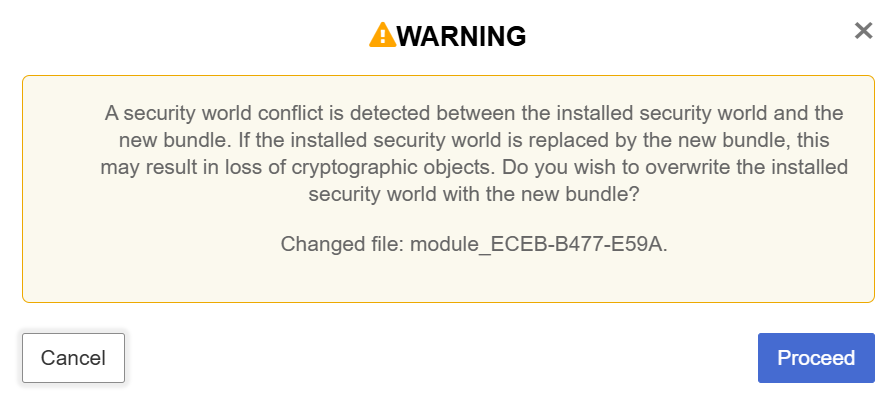
- Click Proceed. A message indicating that the upload was successful appears.