The Certificate Domains enables users to discover and collect domain names by querying Certificate Transparency (CT) logs.
Follow the steps below to perform functions on the Certificate Domains page:
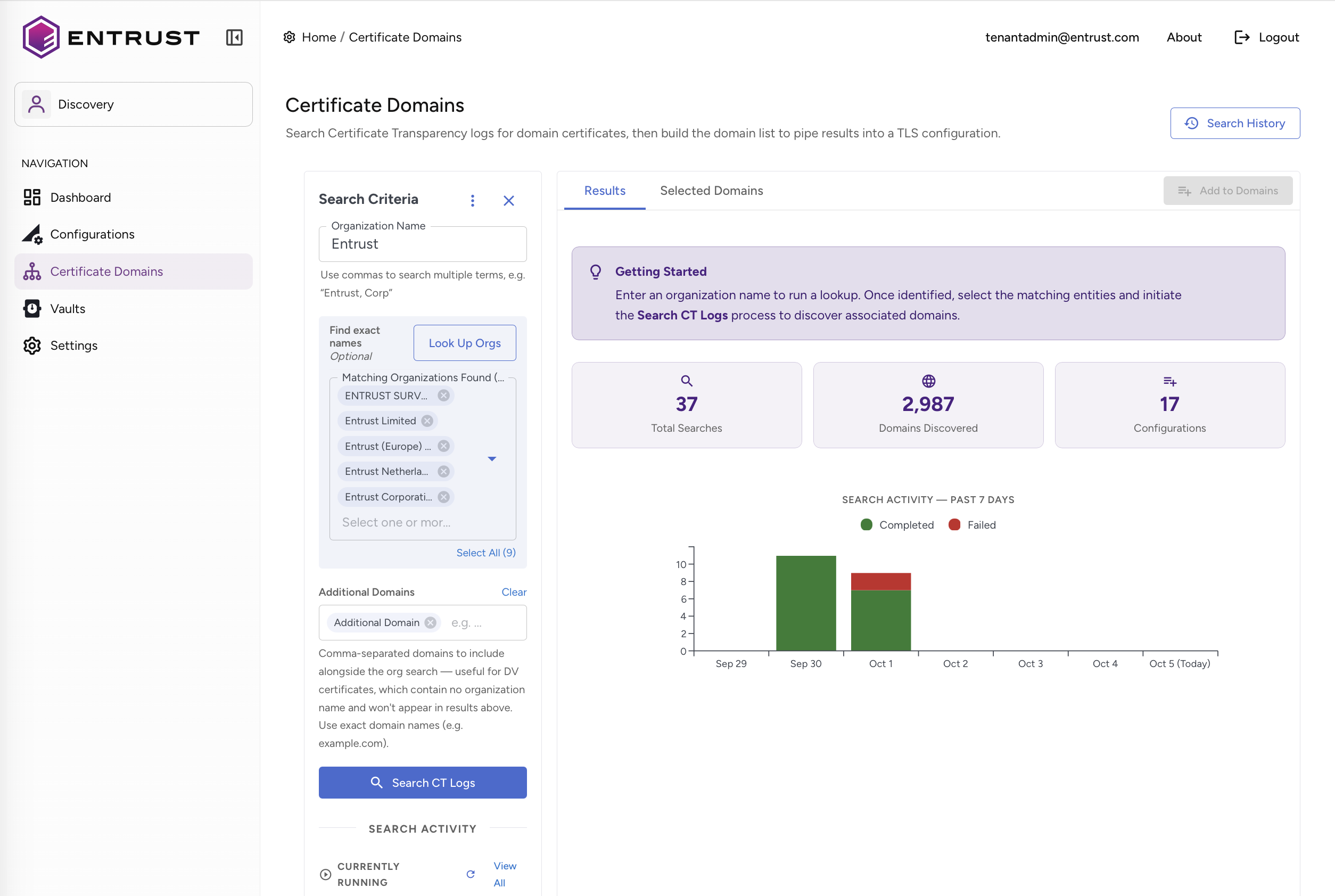
Search for Domains
- Navigate to the Certificate Domains page.
- In the Search Criteria section, enter an Organization Name.
- Review the matching organizations returned by the search and select the required organisation.
- The initial search returns a list of matching organizations. Select the required organization from the list. Optionally, enter additional domains in the Additional Domains field.
- Click Search CT Logs to start the Certificate Transparency log search.
- To cancel an active search, click the Close (X) icon.
Note: When a CT Log search is running or completed while user is working on another page, such as the Configuration page, a notification is displayed. Click View Result to view the search details.
Review and Select Domains
- The discovered domains are displayed alphabetically in the Results section.
- To organise the results into groups, click the Grouping icon.
- Select the domains that you want to add to a configuration, and then click Add to Domains.
Create a New Configuration
- To add domains to a new configuration or modify an existing configuration, click the Selected Domains tab.
- Select Create New Configuration.
Note: The Configuration Preview displays the number of hostnames identified through CT Discovery, along with the Scan Type and Frequency.
- Enter a Configuration Name. If required, add additional domains and a description.
- Click Save Configuration.
- After the configuration is saved, a Configuration Saved or Configuration Updated message is displayed.
- To make additional changes, click Stay on This Page. Otherwise, click Go to Edit Config.
- On the configuration edit page, update the required field values in the configuration settings.
- Click Test Configuration to validate the configuration, and then click Save to apply the changes.
Add Domains to an Existing Configuration
- Search for the required domains and select the domains that you want to add.
- Open the Selected Domains tab and select Add to Existing Configuration.
- From the Select Configuration drop-down list, select the required configuration.
- To view the domains already associated with the selected configuration, click View.
- In the Manage Existing Domains window, use the search field to locate specific domains. Review or remove domains as required, and then click Done.
- If required, enter domains in the Additional Domains field.
- Click Update Configuration.
Note: After updating the configuration, use the options displayed in the confirmation message to remain on the current page or navigate to the configuration edit page.
View Search History
- Click Search History. Alternatively, click the three-dot (⋮) menu and select Search History.
- On the Search History page, review previous searches and use the appropriate action to:
- Load a previous search.
- View its results.
- Delete the search.
3. When finished, click the Close (X)
View Bookmarks
- Click the three-dot (⋮) menu and select Bookmarks.
- In the Bookmarks window, review the bookmarked items and use the appropriate action to:
- Load a bookmark.
- Delete a bookmark.
3. When finished, click the Close (X)