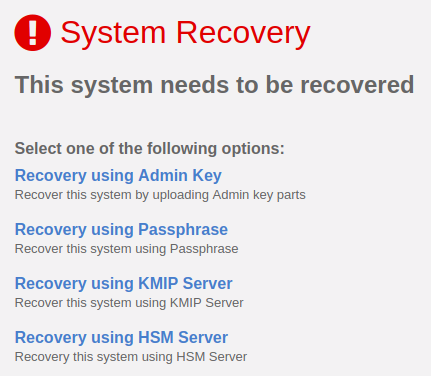
If CSP Vault requires master key recovery or if the startup passphrase is set, then admin input is required during boot to unlock the root volume. When this happens, the Cryptographic Security Platform Vault webGUI displays the System Recovery dialog box, which is similar to the System Recovery Options dialog box. For more details, see Recovering Access to Cryptographic Security Platform Vault
If you cannot recover your system, then you need to use the Cryptographic Security Platform Vault Bootloader System Console to troubleshoot your issues. You can access the Bootloader System Console from either the Cryptographic Security Platform Vault VM console or by using an SSH connection to your Cryptographic Security Platform Vault IP address. You must log in as htadmin.
Note: If you log in using the VM console, you will see the following text. Enter y to start the System Console.
Please recover Cryptographic Security Platform Vault System Keys from WebGUI.
Cryptographic Security Platform Vault System Keys are not accessible.
Do you want to start KeyControl System Console? (y/n): y
Important: If you access the System Console using the VM console, and then successfully recover your system, you must quit the TUI before the VM boot will proceed. This does not apply if you access the System Console over SSH.
After you have logged in, you will see the following:
Option | Name | Description |
|---|---|---|
1 | Show HT encryption log file | Displays the log generated during boot for encryption or rekey. Run this command if requested by Support. |
2 | Set htsupport password | Enable the full support login account ( |
3 | Show Active network | Displays the active network addresses and routes for your Cryptographic Security Platform Vault node. If you set a temporary network, it displays the information for the new network. |
4 | Show persistent Cryptographic Security Platform Vault network | Displays the network configuration parameters currently configured for your Cryptographic Security Platform Vault node. This includes IP address, netmask, gateway, DNS address, and domain name. |
5 | Activate persistent Cryptographic Security Platform Vault network | Automatically restarts the Cryptographic Security Platform Vault networking service using the persistent network parameters. |
6 | Configure temporary network | Create a temporary network for your Cryptographic Security Platform Vault node. This command prompts for the network interface name, IP address, netmask, gateway, DNS address, and domain name. You can also enable DHCP. |
7 | Quit TUI Session | Close the System Console and return to the prompt. |